# Ready To Fly
# 1. Integration scheme
# 1.1. Overview
Zamna Client provides Ready To Fly API for airline applications and touch-points to interact with:
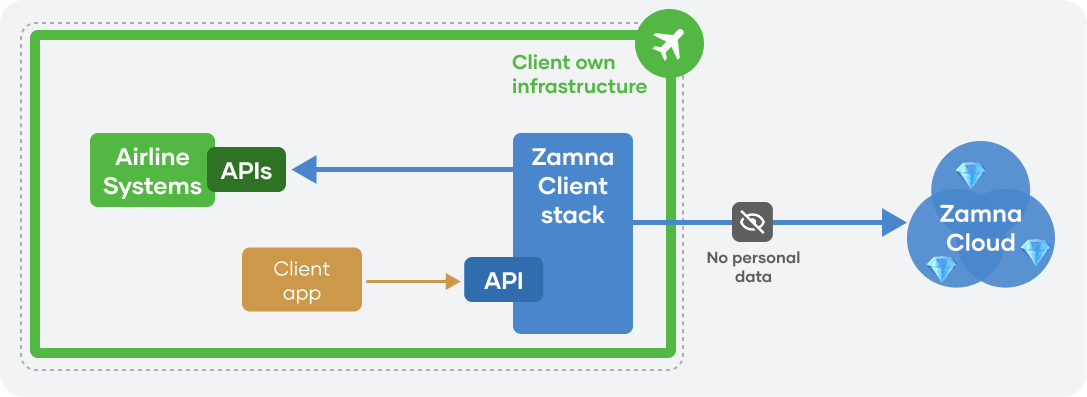
Clients can either build their own UI on top of the API (web check-in, native mobile apps), or use the Zamna WebView — a hosted frontend that implements the full passenger flow.
# 1.2. Zamna WebView
When the Zamna WebView (frontend application) is used, an additional component is deployed alongside the API:
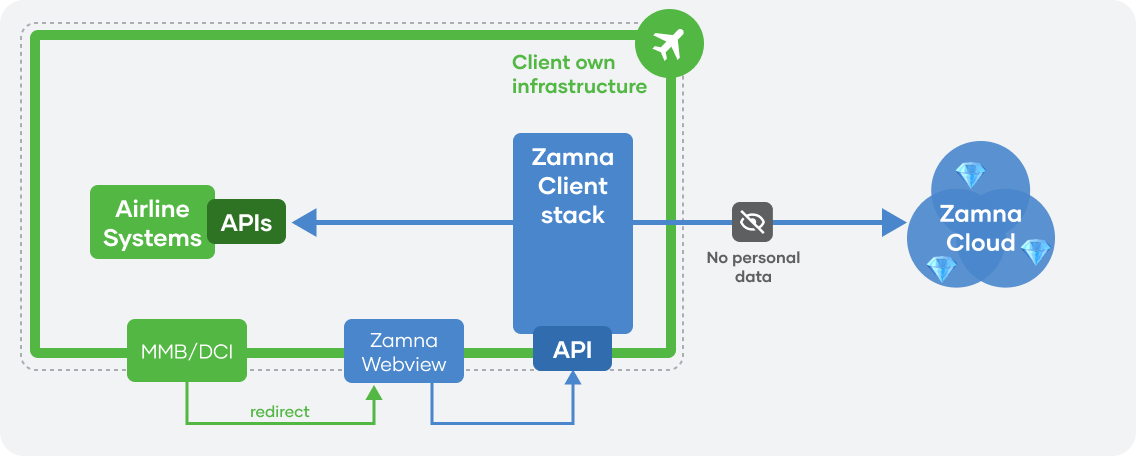
Zamna ApiServers can be integrated by Zamna with your DCS and other internal/external systems for orchestration, supporting complex workflows and rich use cases.
After deployment of the Zamna Client stack, navigate a passenger to the /start2 endpoint (swagger (opens new window), redoc (opens new window)) with an encrypted booking id — the passenger is authenticated and redirected to the WebView with a session JWT. See WebView integration for browser and embedded setup.
# 1.3. Authentication model
From a high-level point of view, the basic authentication model relies on airline apps having a key (AES/RSA, etc.), by which they can encrypt a booking identifier and pass it to a mobile/web app, which in turn uses it to invoke Zamna Client API and obtain a session token for all other endpoints:
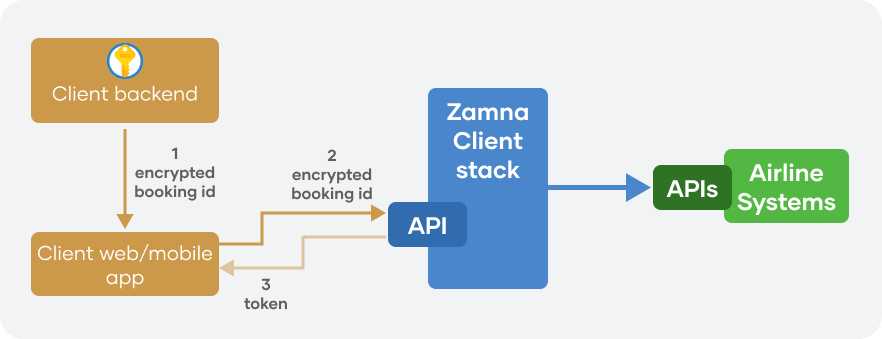
The encrypted_booking_id query parameter value is:
url_encode(base64_encode(encrypted_booking_data))
URL-encoding is required because base64 output contains +, /, and = characters that are not safe in query strings.
Alternatively, an airline backend can retrieve a new session token from Zamna Client and pass it to a mobile/web app to directly interact with Zamna Client APIs:
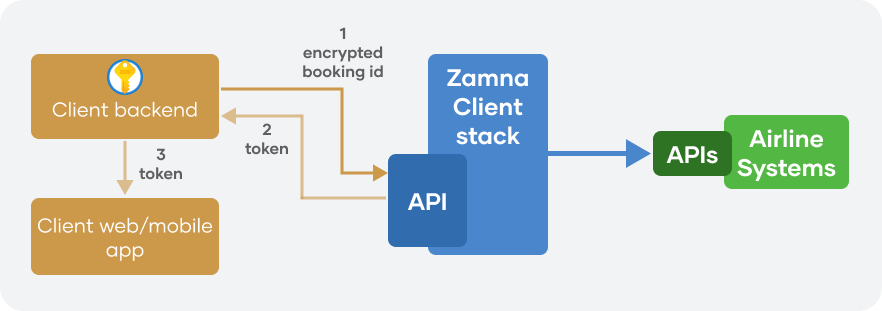
Zamna Client's authentication server (shipped as part of the Zamna Client stack) can be extended with other authentication approaches adopted by airlines.
Optional index login (booking id + surname)
When WebView is deployed with REACT_APP_DISSALOW_INDEX_LOGIN=false, passengers can open the WebView directly and sign in with booking id and surname on the index login page. That flow calls POST /start-with-booking-id-and-surname and requires reCAPTCHA Enterprise on both WebView (REACT_APP_RECAPTCHA_SITE_KEY) and ApiServer (SERVER__RECAPTCHA_SECRET). This endpoint is not registered when SERVER__RECAPTCHA_SECRET is unset.
The default integration path keeps index login disabled (REACT_APP_DISSALOW_INDEX_LOGIN=true) and uses /start2 with an encrypted booking id instead — no reCAPTCHA setup required. See WebView — Configuration.
# 1.4. API docs
Zamna Ready To Fly API utilises OpenAPI standard: Zamna Ready To Fly OpenAPI specification (opens new window), which can be used to auto-generate native API clients across a variety of platforms (OpenAPI generator (opens new window)).
Swagger (opens new window) and redoc (opens new window) documentation is also available.
# 2. Flow
# 2.1. Overview
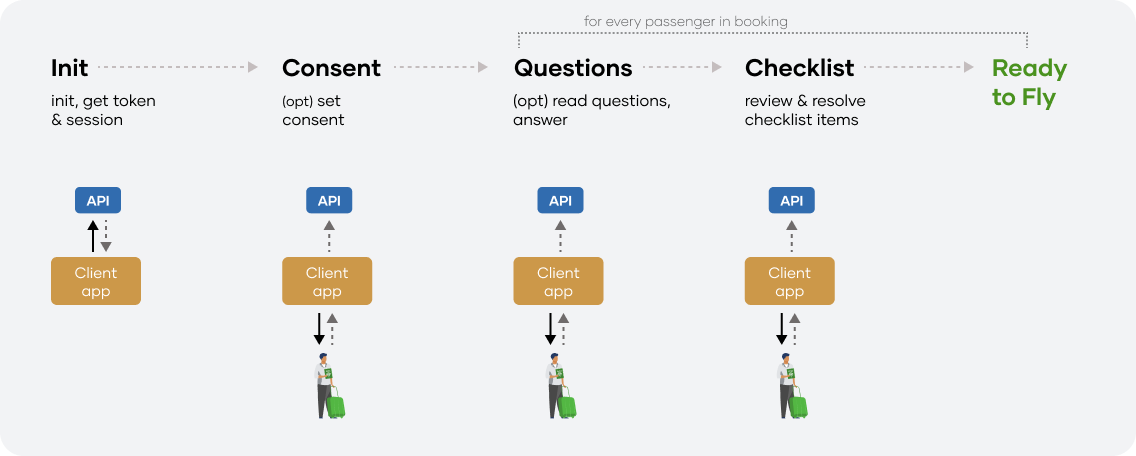
The passenger flow is a wizard driven by paxSession.required_action. After each API call that changes session state, read the returned PaxSession and use required_action to determine the next step.
| Stage | Summary |
|---|---|
| Init | Create session, obtain token |
| Consent | Optional — set consent if not provided at init |
| Travel doc | Scan, upload, or manually enter an allowed travel document |
| Questions | Optional — HaveDocument, declaration, and pick-from-list questions |
| Resolve | Resolve checklist items one by one |
| Ready to Fly | All requirements satisfied |
Steps Travel doc, Questions, and Resolve apply per passenger. In MultiPax bookings, repeat them for each passenger in the session.
Localisations — for UI
Zamna Client API provides all necessary localisations for names, titles and descriptions for supported languages (Accept-Language header is supported by all relevant endpoints)
TIP
Every endpoint that changes session state returns its updated version on success
# 2.2. Init, get token & session
Browser / WebView: call /start2 (swagger (opens new window), redoc (opens new window)). The backend creates a MultiPax session and responds with 302 redirect to the WebView with pax_check_token. See WebView — Browser integration for full parameter details.
Programmatic API clients: call /start (swagger (opens new window), redoc (opens new window)) to retrieve session_id and pax_check_token as JSON — no redirect.
Consent (true/false) may be set as part of session initialisation via the consented parameter, skipping the consent step in the UI.
At any point, the current MultiPax session state can be retrieved with GET /session/{sessionId} (swagger (opens new window), redoc (opens new window)).
Current Pax session state can be queried from GET /session/{sessionId}/pax-session/{paxSessionId} (swagger (opens new window), redoc (opens new window)).
When building your own UI, poll GET /session/{sessionId} after init and iterate through each passenger's PaxSession, using required_action to drive navigation.
# 2.3. MultiPax: passenger selection & consent
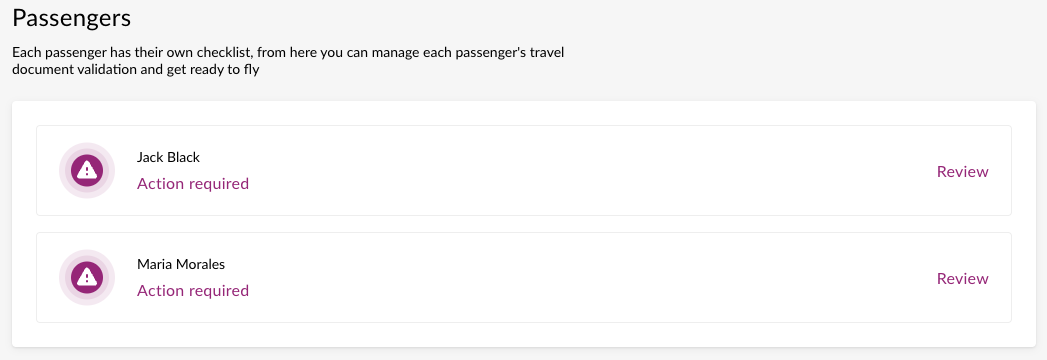
A MultiPax session may contain several Pax sessions (passengers). All actions (apart from consent) are performed at Pax session level.
MultipaxSession.paxs is the full list of passengers on the booking. If more than one passenger is loaded, present a passenger picker in the UI before continuing with individual steps:
# Set consent response
If consent was not set during initialisation, required_action on each PaxSession will be PROVIDE_CONSENT_RESPONSE.
No questions or checklist items will be present until consent is captured.
Consent should be taken from the passenger in the UI and submitted with POST /session/{sessionId}/set-consent (swagger (opens new window), redoc (opens new window)):
{ "consent": true }
Returns the updated MultiPax session.
# 2.4. Travel document verification
This step is triggered when is_travel_document_verified = false or required_action = PROVIDE_NATIONALITY_OR_BIRTHDATE — meaning the travel document has not yet been provided or verified.
# Which document?
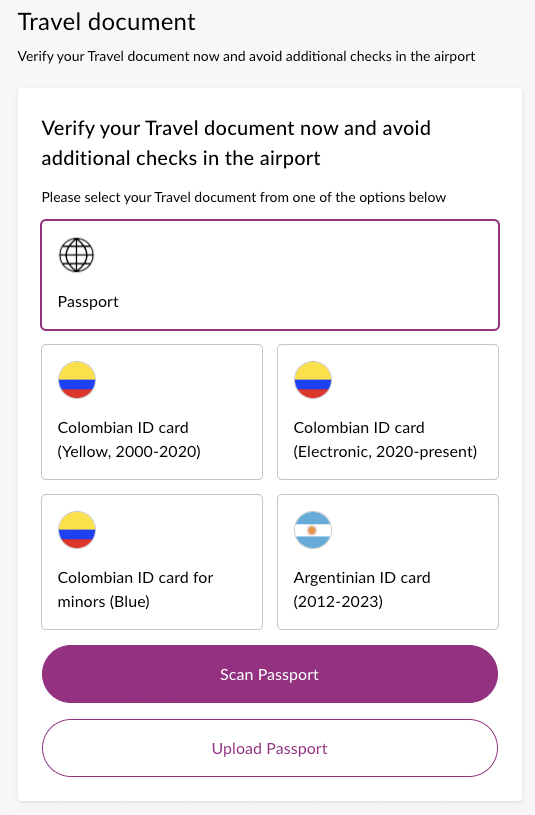
Read checklist.allowed_travel_documents_set — this lists all acceptable travel document types for this passenger and journey. The document is not always a passport; it may be a national ID card or another type depending on route, rules, and client configuration.
Each entry in allowed_documents is an AllowedDoc with type, title, provision_methods, and scanner configuration (sides_configuration, sides_expectation).
If allowed_travel_documents_set.force_document_type_required = true and multiple types are allowed, present a document-type picker before scanning or uploading (same pattern as checklist item resolution in §2.8).
# Resolution methods
For each allowed travel document type, the passenger may choose from the available provision_methods:
| Method | Endpoint |
|---|---|
SCAN | POST .../recognise-document → POST .../apply-document/recognised |
UPLOAD | POST .../recognise-document → POST .../apply-document/recognised |
MANUAL | POST .../apply-document/travel-document |
# Scan / upload flow (recognise → apply)
Document recognition is a two-step process:
Step 1 — Recognise: POST /session/{sessionId}/pax-session/{paxSessionId}/recognise-document (swagger (opens new window), redoc (opens new window))
Multipart form fields:
| Field | Description |
|---|---|
method | SCAN or UPLOAD |
expected_document_types | Comma-separated document type strings from allowed_travel_documents_set |
page_index_to_process | Page index for multi-page documents |
files | Binary file(s) |
Configure the scanner from sides_configuration and sides_expectation on the selected AllowedDoc.
Response on success:
{
  "data": {
    "documents": [...],
    "signature": "...",
    "document_type": "PASSPORT"
  }
}
Step 2 — Apply: POST .../apply-document/recognised (swagger (opens new window), redoc (opens new window))
Re-submit the recognised payload with the signature:
{
  "documents": [...],
  "signature": "...",
  "document_type": "PASSPORT",
  "method": "SCAN",
  "is_travel_document": true
}
The signature ties the recognise response to the apply request — do not modify the documents payload between steps.
# Manual entry
For manual travel document entry, use POST .../apply-document/travel-document (swagger (opens new window), redoc (opens new window)):
{
  "travel_document": {
    "document_type": "PASSPORT",
    "number": "AD33344455",
    "expiry_date": "2030-01-01",
    "country_code": "GBR",
    "birthdate": "1980-01-01",
    "nationality": "GBR"
  },
  "ignore_mistakes": false
}
# Outcome
When successful, nationality and birthdate are typically derived from the verified document (or supplied via manual entry). There is no separate nationality/birthdate step in the wizard.
DCS updates
In the background, Zamna Client adds the travel document to the DCS and marks it as verified
# 2.5. HaveDocument questions
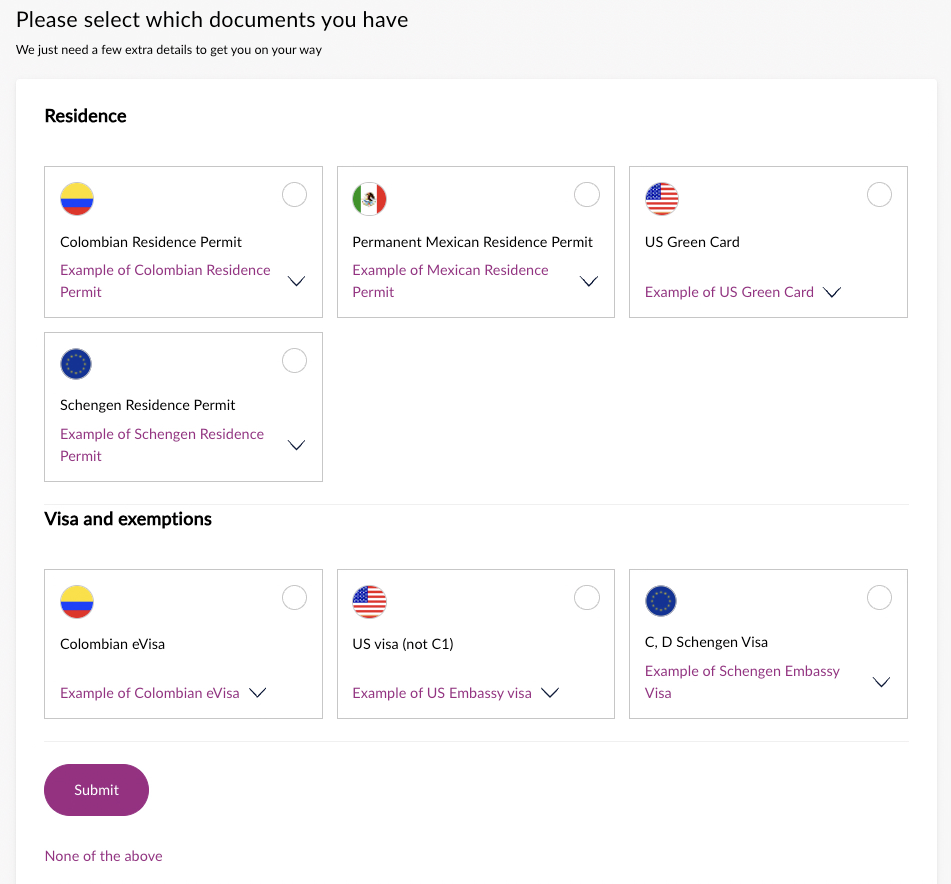
After travel document verification, present HaveDocument questions as a separate wizard step before declarations.
Filter checklist.questions where type = "have-document-question" and answer is not yet set.
Each question includes:
doc_category_title— document category (localised)doc_title— specific document title (localised)country— relevant country codesample_image— optional specimen image
Submit answers via POST /session/{sessionId}/pax-session/{paxSessionId}/answers (swagger (opens new window), redoc (opens new window)):
{
  "answers": [
    { "type": "bool-answer", "question_id": "HelbxGxFg0gpdAdnumztVA==", "value": true }
  ]
}
Returns updated Pax session. Once all HaveDocument questions are answered, the checklist may expose further questions or begin forming items.
Sample images for questions
For key questions, API returns sample image URLs (eg document samples)
# 2.6. Declaration & pick-from-list questions
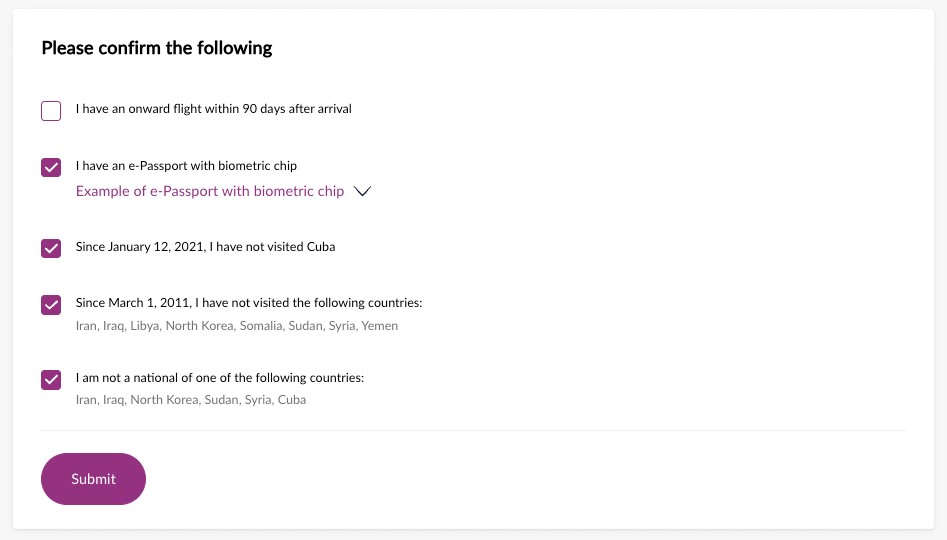
Present remaining questions where type = "declaration-item" or type = "pick-from-list-question".
# Declaration items
declaration-item questions are yes/no assertions. Submit using confirm_declarations and refute_declarations arrays (not the answers array):
{
  "confirm_declarations": ["declaration_id_1"],
  "refute_declarations": ["declaration_id_2"]
}
Only include declaration IDs the passenger explicitly confirmed or refuted.
# Pick-from-list questions
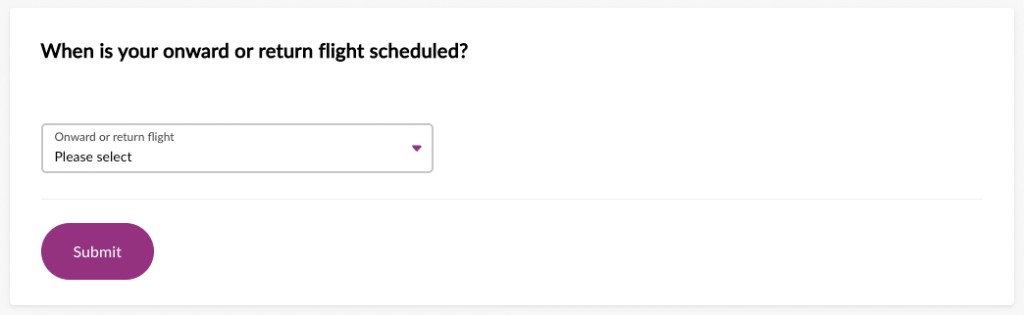
pick-from-list-question presents a single choice (eg passport type, onward flight). Submit via answers:
{
  "answers": [
    { "type": "from-list-answer", "question_id": "abc123", "value": "DIPLOMATIC" }
  ]
}
# 2.7. Address (US-bound)
If the passenger is travelling to the US and is not a US national, required_action will be PROVIDE_ADDRESS.
Submit via POST /session/{sessionId}/pax-session/{paxSessionId}/address (swagger (opens new window), redoc (opens new window)):
{
  "address": {
    "lineOne": "123 Main St",
    "city": "New York",
    "state": "NY",
    "postalCode": "10001",
    "countryCode": "US"
  }
}
# 2.8. Resolve checklist items one by one
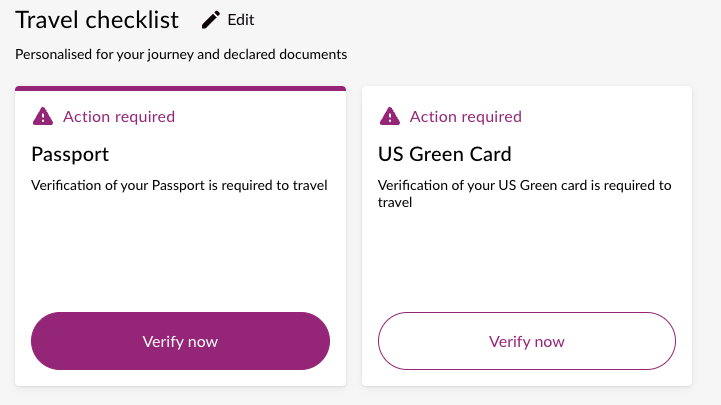
Once all questions are answered, the checklist is formed and checklist.items lists document requirements. If any items are not yet RESOLVED, required_action will be RESOLVE_ITEMS.
Present unresolved items to the passenger and resolve them one at a time:
# Allowed documents
Each checklist item includes allowed_documents_set:
| Field | Purpose |
|---|---|
allowed_documents | List of AllowedDoc entries that can satisfy this item — each with its own type, title, provision_methods, and scanner config |
force_document_type_required | When true, the passenger must pick a document type before scan/upload/manual if multiple types are allowed |
How to use it in your UI:
- Find the next item where
status != RESOLVED. - Read
item.allowed_documents_set.allowed_documents. - If
force_document_type_required = true, or more than one document is allowed, show a document-type picker (use each entry'stitle). - After the passenger selects a document, show only that entry's
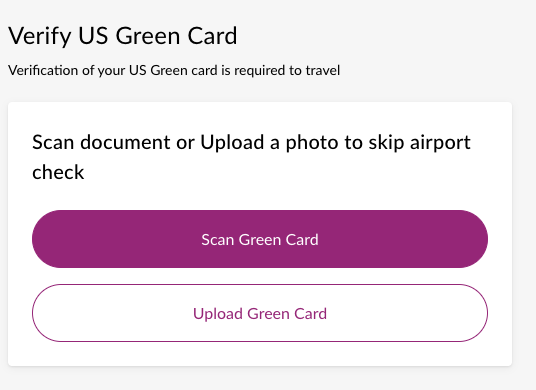
provision_methods— do not offer scan if the selected doc only supports upload, etc. - Update action labels to match the selection (eg "Scan US visa in passport").
- Call
recognise-documentwithexpected_document_typesset to the selectedAllowedDoc.type. - Call
apply-document/recognisedwith the matching document — the API returnsdocument-kind-mismatchif the provided document does not match the selected or expected type.
If only one document is allowed and force_document_type_required = false, skip the picker and proceed directly to resolution methods for that document.
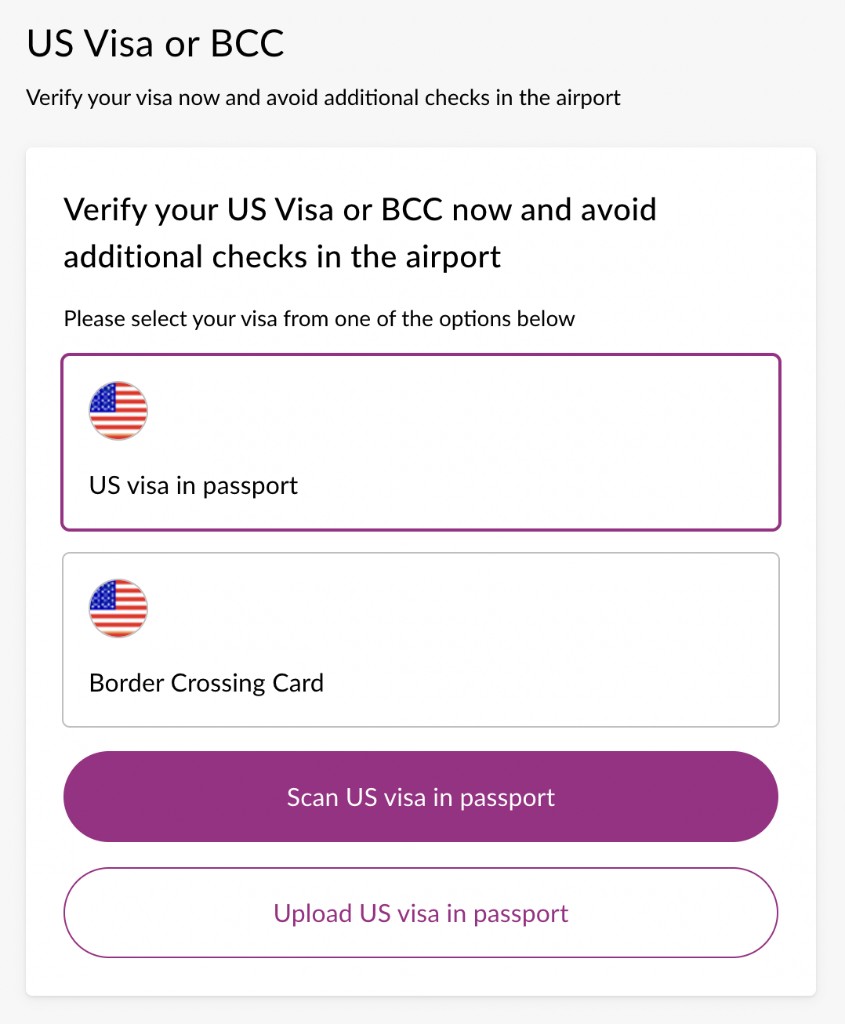
Example: a US Visa or BCC item allows either a US visa in passport or a Border Crossing Card. The passenger selects one option first; scan/upload actions then apply only to that choice.
# Resolution methods
Present available provision_methods (SCAN / UPLOAD / MANUAL) for the selected document type:
# Scan / upload
Same two-step recognise → apply flow as §2.4, but with is_travel_document: false (unless resolving a travel document checklist item):
POST .../recognise-document— passexpected_document_typesfrom the selectedAllowedDoc.typePOST .../apply-document/recognised— includeis_travel_documentmatching the checklist item
# Manual entry
For non-travel documents (eg onward ticket), use POST .../apply-document/manual (swagger (opens new window), redoc (opens new window)).
On success, the item becomes RESOLVED and the updated Pax session is returned:
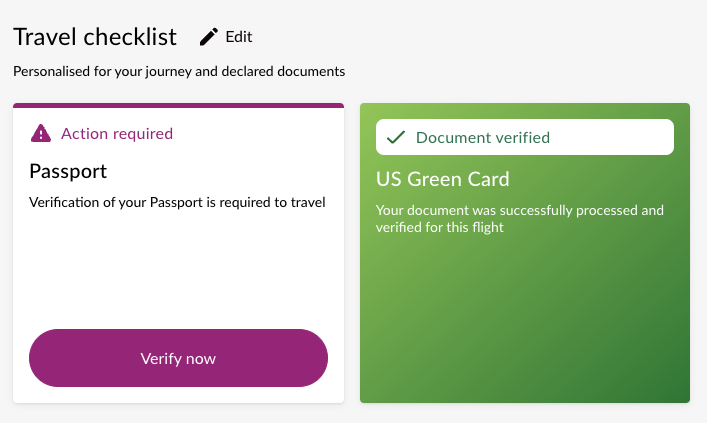
DCS updates
In the background, Zamna Client adds required documents to the DCS and marks them as verified
# Error handling
Apply and recognise endpoints return error.operationError with a type discriminator. Common errors:
| Type | Description |
|---|---|
document-kind-mismatch | Wrong document type scanned or uploaded |
not-all-sides-scanned | Required document sides not provided |
no-mrz-side-scanned | MRZ side of document not scanned |
mrz-validation-failed | MRZ checksum verification failed |
mrz-to-viz-mismatch | MRZ data does not match visual inspection zone |
file-too-large | Uploaded file exceeds size limit |
file-type-not-supported | File format not supported |
id-mismatches | Document data does not match booking (name, birthdate, etc.) |
rules-mismatches | Document fails entry rules (eg expiry date) |
signals-mismatches | Document fails signals validation |
provide-passport | Travel document required before this document can be applied |
no-items-to-apply-document-to | No matching checklist item for the document provided |

Some checklist items can be resolved by different document types (eg US visa in passport vs Border Crossing Card, or Indian embassy visa sticker vs Indian E-Visa PDF). Always require an explicit document-type selection when force_document_type_required = true before calling recognise/apply endpoints — see Allowed documents above.
# 2.9. Ready To Fly
Once all checklist items are RESOLVED, checklist.resolution_status becomes READY_TO_FLY and required_action is null:
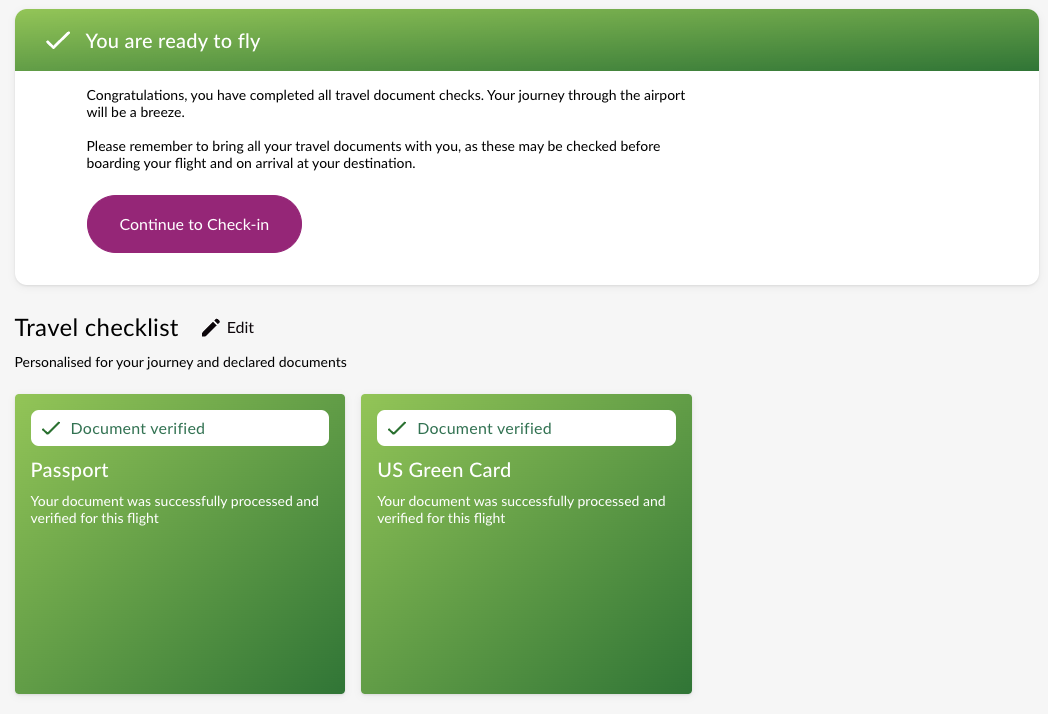
Browser mode: redirect to return_url?ready_to_fly=true.
Embedded mode: WebView emits closeFlow { reason: "ready_to_fly" } via the native bridge — see WebView — Embedded integration.
DCS updates
In the background, Zamna Client sets/removes any required inhibitors, flags and/or SSRs
# 3. Main models and statuses
# 3.1. MultiPax session
Booking level
id— MultiPax session idjourney— journey details (departure, transit, arrival)paxs— collection of Pax sessions
# 3.2. Pax session
Passenger level
pax_session_id— Pax session id, starts withpax_required_action— next action for this passenger (see table below)consented— consent response (true/false), ornullif not yet providedpax— basic passenger details from booking (first name, last name, birthdate)checklist— Checklist (questions and items)is_travel_document_verified— whether the travel document has been verifiedis_visa_verified— whether visa document is saved in DCSis_rp_verified— whether residence permit document is saved in DCS
| RequiredAction | Description |
|---|---|
null | No action required — present current Checklist status to passenger |
PROVIDE_CONSENT_RESPONSE | Consent response is required |
PROVIDE_NATIONALITY_OR_BIRTHDATE | Travel document not yet provided — proceed to travel document verification (§2.4) |
ANSWER_QUESTIONS | Unanswered questions remain — look at checklist.questions |
PROVIDE_ADDRESS | US destination address required for non-US nationals |
RESOLVE_ITEMS | Unresolved checklist items remain — look at checklist.items |
# 3.3. Checklist
id— checklist idstatus— checklist statusStatus Description ON_HOLDChecklist is on hold — temporary status, usually during rules updates FINALIZEDChecklist is finalised (usually 4 hours post departure), no more edits allowed ACTIVEChecklist is active — look at resolution_statusresolution_status— checklist resolution statusResolution status Description UNKNOWNTemporary status — usually during rules updates ENTRY_NOT_ALLOWEDEntry not allowed with current answers — passenger may change answers to proceed NOT_ELIGIBLEPassenger not eligible for online document verification ACTION_REQUIREDQuestions or items require action READY_TO_FLYAll requirements satisfied — passenger is Ready to Fly DCS updates
In the background, Zamna Client sets/removes any required inhibitors, flags and/or SSRs
nationality— passenger nationality (ISO alpha-3), ornullif not yet knownhas_nationality_question—trueif nationality affects rules and has not yet been providedbirthdate— passenger birthdate, ornullif not yet knownhas_birthdate_question—trueif birthdate affects rules and has not yet been providedallowed_travel_documents_set— all acceptable travel document types for the travel document step; available early, before items are formed (see §2.4)questions— list of questions to present to passenger;nulluntil nationality/birthdate are collecteditems— list of checklist items;nulluntil all questions are answered and checklist is formed
# 3.4. Question types
Questions use a type discriminator. Three subtypes:
# have-document-question
Boolean "I have {document}" question, shown as a separate wizard step (§2.5).
| Field | Description |
|---|---|
id | Question id |
type | "have-document-question" |
is_relevant | Whether question applies given current answers |
answer | Previously provided answer, or null |
doc_category_title | Document category title (localised) |
doc_title | Document title (localised) |
country | Relevant country code |
sample_image | Optional specimen image |
# declaration-item
Yes/no declaration, shown in the declarations step (§2.6).
| Field | Description |
|---|---|
id | Declaration id |
type | "declaration-item" |
is_relevant | Whether declaration applies given current answers |
answer | Previously provided answer, or null |
question_title | Declaration title (localised) |
default_value | Default answer value |
sample_image | Optional specimen image |
# pick-from-list-question
Single choice from a list (eg passport type, onward flight).
| Field | Description |
|---|---|
id | Question id |
type | "pick-from-list-question" |
is_relevant | Whether question applies given current answers |
answer | Previously selected option id, or null |
question_title | Question title (localised) |
options | Array of { id, title } choices |
Localisations — for UI
All titles and descriptions are localised and returned by Zamna Client API (Accept-Language header is supported by all relevant endpoints)
# 3.5. Answer types
Answers are submitted via POST .../answers in a SetAnswersRequest:
{
  "nationality": "GBR",
  "birthdate": "1980-01-01",
  "answers": [...],
  "confirm_declarations": ["declaration_id"],
  "refute_declarations": ["declaration_id"]
}
Two answer subtypes (inside answers array):
# bool-answer
For have-document-question questions:
{ "type": "bool-answer", "question_id": "abc123", "value": true }
# from-list-answer
For pick-from-list-question questions:
{ "type": "from-list-answer", "question_id": "abc123", "value": "DIPLOMATIC" }
confirm_declarations and refute_declarations are top-level arrays of declaration id strings — not inside answers. Use these for declaration-item questions.
# 3.6. Checklist item
Checklist items use a type discriminator:
document-requirement— a document the passenger must provide and verifyinfo-item— informational only (is_info = true), cannot be resolved (eg USA ESTA notice)
For document-requirement items:
id— checklist item iditem_type— item type string (egPASSPORT,VISA)item_territory— territory suffix when applicable (egUSA→ displayed asVISA/USA)title— title (localised)description— description (localised)status— item statusStatus Description NOT_YET_RESOLVEDItem not resolved VERIFICATION_REQUIREDVerification (scan/upload) required to resolve item RESOLVEDItem resolved allowed_documents_set— set of documents which can be used to resolve this item (AllowedDocumentsSet)
Localisations — for UI
All titles and descriptions are localised and returned by Zamna Client API (Accept-Language header is supported by all relevant endpoints)
# 3.7. AllowedDocumentsSet
allowed_documents— list ofAllowedDocentriesforce_document_type_required— iftrue, passenger must pick a document type fromallowed_documentsbefore resolving
# 3.8. AllowedDoc
type— document type string (egUSA_GREEN_CARD,PASSPORT)title— title (localised)description— description (localised)provision_methods— ways to resolveProvision method Description MANUALDocument can be typed in manually SCANDocument can be scanned with camera UPLOADDocument can be uploaded as file sides_configuration— what the document physically isSides configuration Description SINGLE_SIDE_OR_FILEOne side (eg passport MRZ page) or one file (eg PDF E-Visa) MULTIPLE_SIDES_OR_FILESMultiple sides (eg US Green Card front and back) or multiple files sides_expectation— what is expected from the passengerSides expectation Description SINGLE_SIDE_OR_FILESingle side expected (usually MRZ side), or one file MULTIPLE_SIDES_OR_FILESMultiple sides or files expected
# 3.9. Document recognition
Document scan and upload use a two-step recognise → apply flow.
# Step 1: Recognise
POST /session/{sessionId}/pax-session/{paxSessionId}/recognise-document
Multipart form:
| Field | Description |
|---|---|
method | SCAN or UPLOAD |
expected_document_types | Comma-separated document type strings |
page_index_to_process | Page index for multi-page capture |
files | Binary file(s) |
Response:
{
  "data": {
    "documents": [...],
    "signature": "...",
    "document_type": "PASSPORT"
  }
}
# Step 2: Apply recognised
POST /session/{sessionId}/pax-session/{paxSessionId}/apply-document/recognised
{
  "documents": [...],
  "signature": "...",
  "document_type": "PASSPORT",
  "method": "SCAN",
  "is_travel_document": true,
  "additional_pax_ids": []
}
signature— must match the value from the recognise response; do not modifydocumentsbetween stepsis_travel_document—truewhen applying a travel document (§2.4),falsefor checklist items (§2.8)additional_pax_ids— optional list of other pax session ids to apply the same document to
# Recognition errors
Returned in error.operationError with type discriminator:
| Type | Description |
|---|---|
document-kind-mismatch | Scanned document does not match expected types |
not-all-sides-scanned | Not all required sides provided |
no-mrz-side-scanned | MRZ side not scanned |
no-barcode-scanned | Barcode not present |
mrz-validation-failed | MRZ checksum failed |
mrz-to-viz-mismatch | MRZ does not match visual zone |
barcode-to-doc-mismatch | Barcode data does not match document |
file-type-not-supported | File format not supported |
document-type-not-supported | Document type not supported |
file-too-large | File exceeds size limit |
unknown-error | Unexpected processing error |
# 4. Platform stats
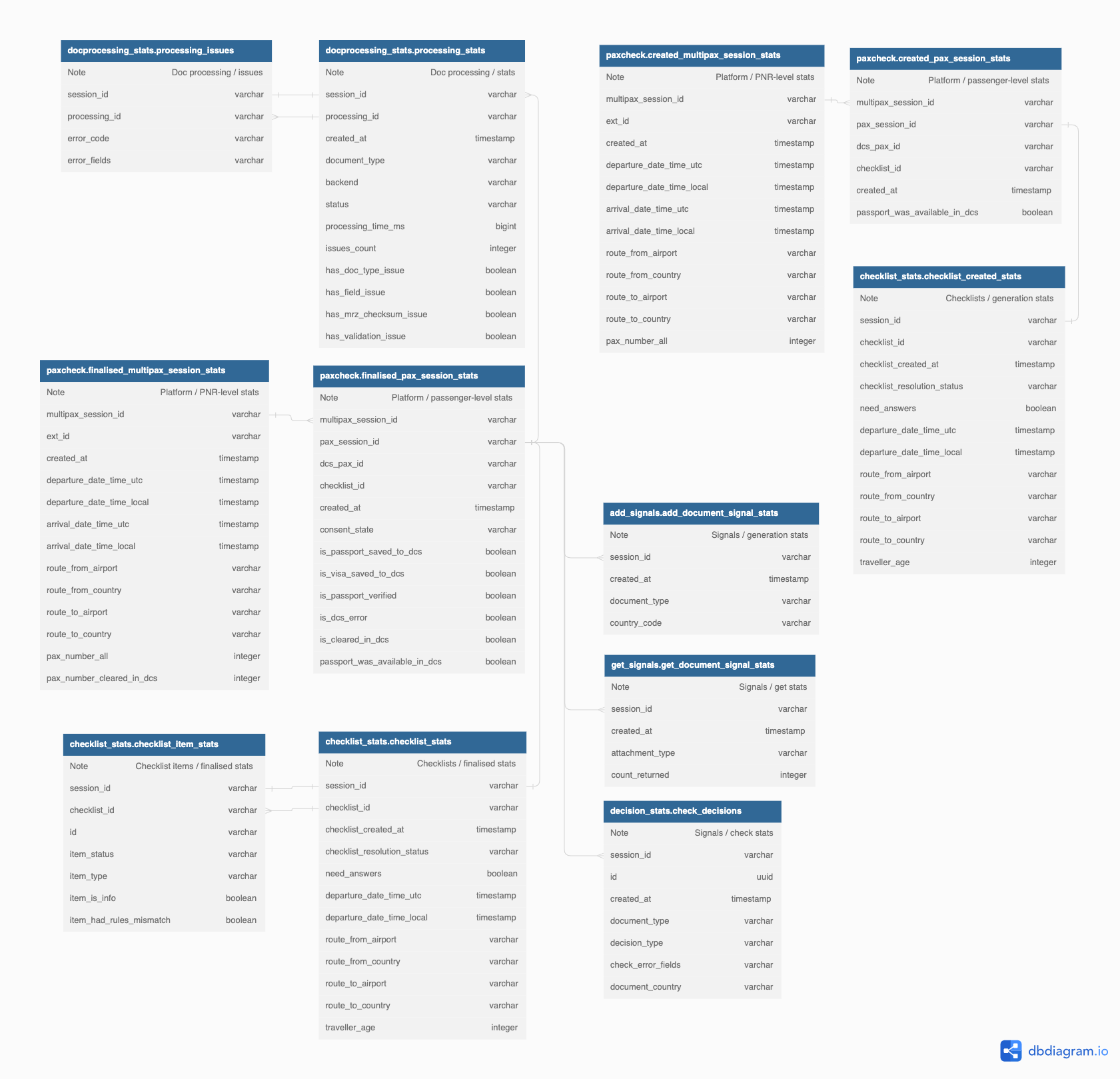
Zamna Client stack collects operational stats in the local PostgreSQL database, deployed with an Airline.
Each entry is marked with external identifiers (booking_id / session_id), thus stats database can be used as a data source for any modern BI tools and platforms.
Please refer to the detailed reference